Scrim Management Guide
Master the art of finding opponents and managing practice games
Scrims are the foundation of competitive improvement. RiftSurge makes it easy to find opponents, schedule games, and track your practice sessions—all in one place.
This guide covers everything you need to know about managing scrims on RiftSurge, from finding opponents to analyzing results.
New to scheduling? Start with the scrim formats overview to pick the right block structure.
Finding Scrim Opponents
The scrim finder is your gateway to practice opportunities. You can browse available scrims posted by other teams or create your own posting to attract opponents.
Browse Available Scrims
The scrim finder shows all open scrim postings from teams looking for practice. You can filter by:
- Date and time
- Region
- Rank/elo range
- Game mode (Best of 1, Best of 3, etc.)
Request a Scrim
When you find a scrim that matches your needs, click "Request Scrim" to send a request. The other team will be notified and can accept or decline.
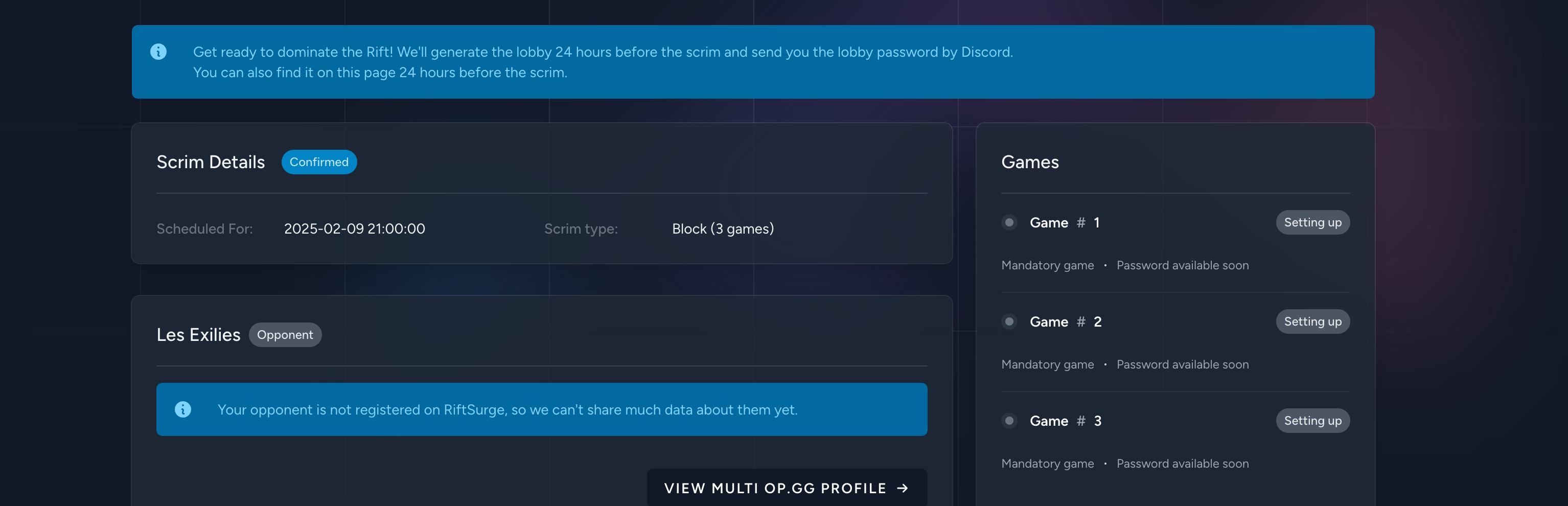
Find scrims by format, region, and preferred time.
Creating Scrim Postings
Post your own scrim to attract opponents. This is especially useful if you have specific requirements or a preferred schedule.
What to Include:
- • Date and Time: When you want to play (include timezone)
- • Format: Best of 1, Best of 3, Best of 5, etc.
- • Rank Range: Your team's approximate rank/elo
- • Special Requests: Any specific requirements (voice comms, specific champions to practice against, etc.)
Only Managers and Coaches can create scrim postings. If you don't have permission, ask your team owner to assign you the appropriate role.
Automatic Game Tracking
Once a scrim is confirmed and played, RiftSurge automatically detects and tracks the game if all team members have connected their Riot accounts.
Games appear in your dashboard within minutes of completion—no manual entry needed.
Full game statistics, timeline data, and performance metrics are automatically synced.
If automatic tracking doesn't work, you can always add games manually with full control over the data.
Reviewing Scrim Results
After each scrim, take time to review the results. This is where improvement happens—understanding what went well and what needs work.
Game Analysis
Review the interactive timeline, key events, and performance metrics for each game.
Team Discussion
Use RiftSurge's notes feature to record takeaways and discussion points from the scrim.
Regular review of scrim results helps identify patterns and areas for improvement. Make it a habit to review games as a team.
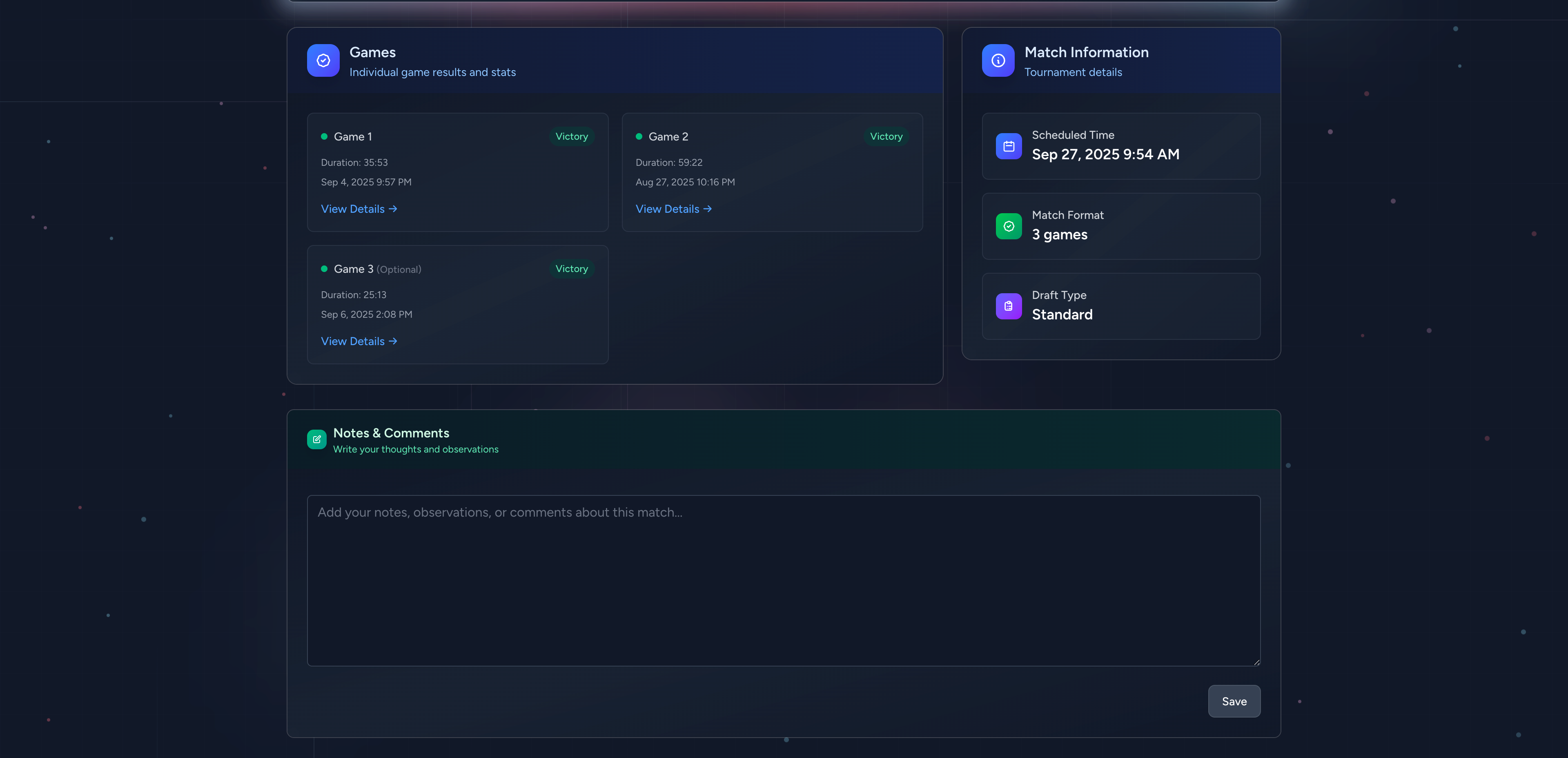
Review timeline events and post-game analysis right after the scrim.
Best Practices
- Be Specific: When creating scrim postings, include clear details about what you're looking for to attract the right opponents.
- Respond Promptly: When teams request your scrims, respond quickly to maintain good relationships in the community.
- Review Regularly: Set aside time after scrims to review results and discuss improvements as a team.
- Track Patterns: Use RiftSurge's analytics to identify which types of scrims are most valuable for your team's improvement.