Getting Started with RiftSurge
Set up your team and start improving in just a few minutes
Welcome to RiftSurge! This guide will walk you through everything you need to get your team up and running. By the end, you'll have a fully configured team with automatic game tracking enabled.
Quick Start Checklist
Create your team and confirm region + timezone.
Invite your roster and assign roles for scrim permissions.
Connect Riot accounts to enable automatic tracking.
Review your dashboard once games sync in.
Create Your Account
Start by creating your RiftSurge account. You can sign up using Discord or email—both options are quick and secure.
What You'll Need:
- • A valid email address or Discord account
- • About 2 minutes of your time
- • No credit card required (free tier available)
Create Your Team
Once you're logged in, you'll be prompted to create your team. This is where you'll set up your team profile and basic configuration.
Choose a name that represents your team. This will be visible on your public profile.
Select your League of Legends region (NA, EUW, EUNE, etc.). This ensures accurate data sync.
Set your timezone so all dates and times display correctly for your location.
Don't worry about getting everything perfect—you can update these settings anytime from your team dashboard.
Connect Your Riot Account
This is the most important step! Connecting your Riot Games account enables automatic game tracking. RiftSurge will automatically detect and sync your scrims, Clash games, and practice matches.
Why Connect Riot Account?
When you connect your Riot account, RiftSurge can automatically track all your games without any manual entry. This means you can focus on playing while we handle the data collection.
To connect:
- Go to your team dashboard
- Click "Connect Riot Account" in your profile settings
- Authorize RiftSurge through Riot's secure OAuth flow
- That's it! Games will start syncing automatically
The connection is secure and read-only—we can only access your match data, never your account credentials or personal information.
Add Team Members
Invite your teammates to join your RiftSurge team. Each member can connect their own Riot account, and their games will be tracked automatically.
Invite Members
Send invitations via email or Discord. Members will receive a link to join your team.
Set Roles
Assign roles (Manager, Coach, Player) to control who can create scrims and manage settings.
The free tier supports up to 7 total members (roster players + team members). Higher tiers allow unlimited members.
Start Tracking Games
Once your team members have connected their Riot accounts, RiftSurge will automatically start tracking games. You don't need to do anything—it just works!
What Gets Tracked Automatically:
- • Custom lobby scrims (when all team members are in the game)
- • Clash tournament games
- • Flex queue games (when played as a team)
- • Game statistics, timeline data, and performance metrics
Games typically appear in your dashboard within a few minutes of completion. You can also manually add games from matches played outside the platform.
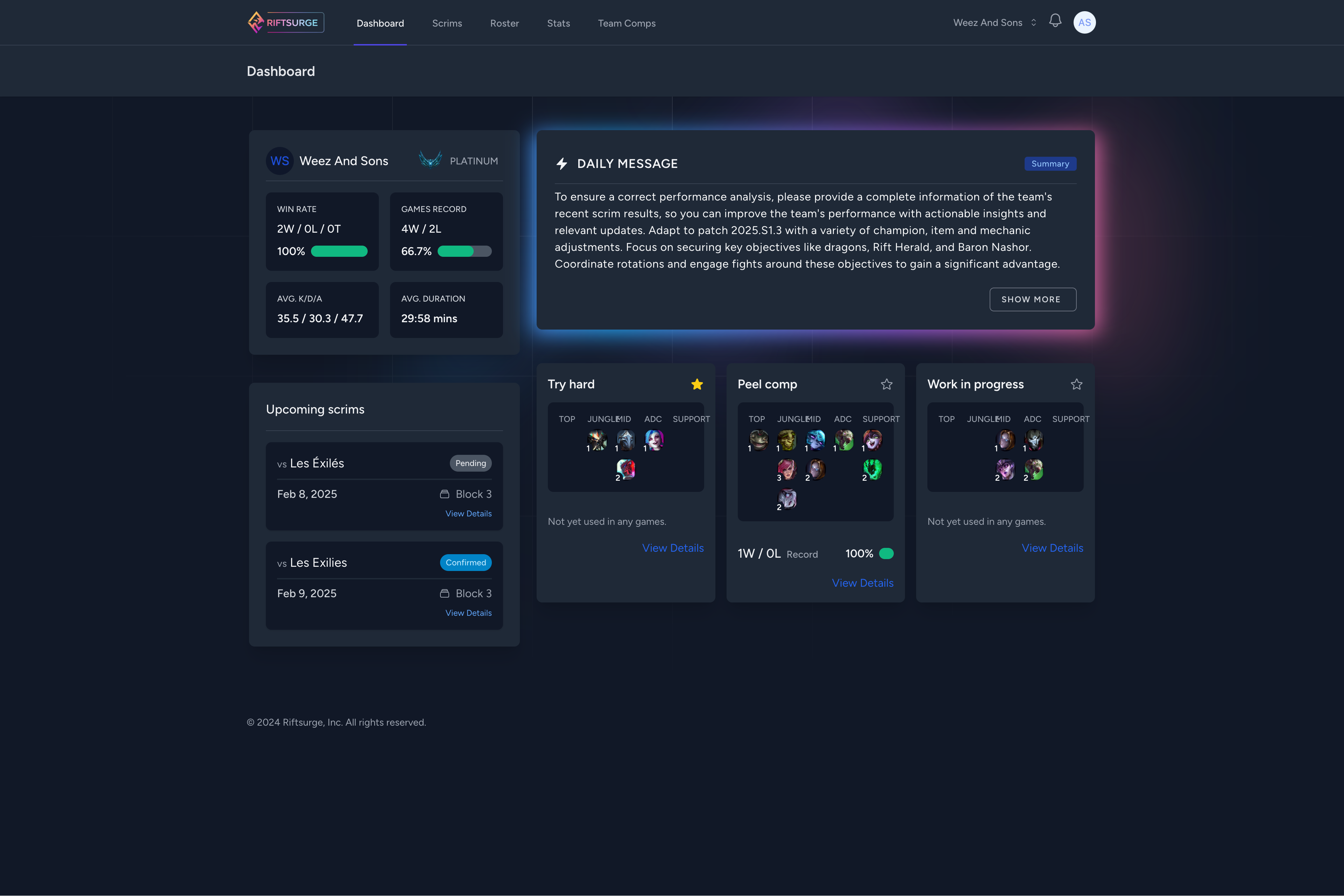
Your dashboard summarizes recent scrims, team stats, and upcoming practice.
What's Next?
Congratulations! Your team is now set up and ready to go. Here are some recommended next steps:
- Schedule Your First Scrim: Use the scrim finder to find practice opponents
- Explore Analytics: Check out your team's stats dashboard to see performance metrics
- Build Compositions: Create your first team composition and start tracking win rates
- Check AI Insights: After a few games, you'll start receiving AI-powered recommendations
- Review Scrim Formats: See the scrim formats guide to plan your practice blocks
- Sharpen Drafts: Use the drafting fundamentals checklist
Scrim Management →
Learn how to find and manage practice games
Team Analytics →
Master your analytics dashboard